
How to Optimize Your Web Forms for AI Agents
Advice to make sure that automated systems can read and complete your webform or checkout
Advice to make sure that automated systems can read and complete your webform or checkout
AI agents are beginning to interact with the web in a fundamentally different way from humans. Instead of browsing and manually completing forms & checkouts, users increasingly instruct an agent to perform tasks on their behalf:
“Book me the cheapest flight to Paris tomorrow.”
“Apply for this credit card.”
“Get a quote for car insurance.”
The agent then visits websites and attempts to complete the necessary steps - including filling out forms.
This raises a practical question for anyone responsible for a form or checkout:
Can an AI agent actually complete your form?
Many web forms are built purely with human users in mind. But AI agents operate very differently. They rely heavily on structured markup, predictable behaviour and machine-readable signals. When those signals are missing (or when anti-bot measures intervene) agents can struggle to proceed.
In this article we’ll explain:
- What AI agents are and how they interact with forms
- Why many existing forms are difficult for agents to complete
- The key signals that help agents succeed
- The common barriers that prevent them from submitting a form
If you’d like insight on whether an AI agent can complete your forms, Zuko has produced a tool which does just that. Zuko Agent Score will audit your form and give it a score based on how effectively AI agents can understand, navigate and interact with it. You can then unlock a more detailed report giving you:
- Detailed analysis of problems related to accessibility, navigation, data input and error handling
- Recording of the agent working through your form showing you where they struggle or get stuck
- Clear, actionable recommendations to improve your form / checkout experience for AI Agents
What Are AI Agents?
An AI agent is software that can autonomously perform tasks on behalf of a user by interacting with systems and interfaces.
Recent advances in large language models and agent frameworks have enabled systems that can interpret user intent, navigate websites, interact with UI elements, and complete workflows such as purchases or applications. Companies including OpenAI, Google and Anthropic are actively developing agent-based systems that can interact with web interfaces programmatically. Gartner predicts that by 2028, 20% of interactions at digital storefronts will be performed by AI agents rather than humans (Gartner, 2024).
Many of these agents work by controlling a browser environment in a similar way to a human user. Frameworks such as browser automation tools and model-based web agents allow agents to inspect page structure, identify form elements and attempt to populate them.
However, agents do not “see” interfaces the way humans do.
How AI Agents Understand Web Forms
Humans interpret forms visually:
- we read labels
- we infer context
- we understand layout
- we recognise patterns
AI agents rely instead on machine-readable signals in the HTML and page structure.
Common techniques include:
- reading DOM structure
- parsing <label> and <input> relationships
- using autocomplete attributes
- interpreting accessible names and ARIA attributes
- following logical navigation order
Research into web agents shows that structured markup dramatically improves an agent’s ability to interact with interfaces.
When these signals are missing or ambiguous, the agent must guess the purpose of fields which significantly increases failure rates.
In short, the easier your form is for assistive technologies to understand, the easier it will be for AI agents too.
Positive Signals: Making Your Form AI-Agent Friendly
Certain design practices make it significantly easier for AI agents to interpret and complete a form.
These practices are already recommended by accessibility and usability guidelines meaning good agent compatibility often aligns with good UX and accessibility.
Clear, visible labels on all fields
Every field should have a visible label that describes its purpose.
For example:
<label for="email">Email address</label>
<input id="email" type="email">
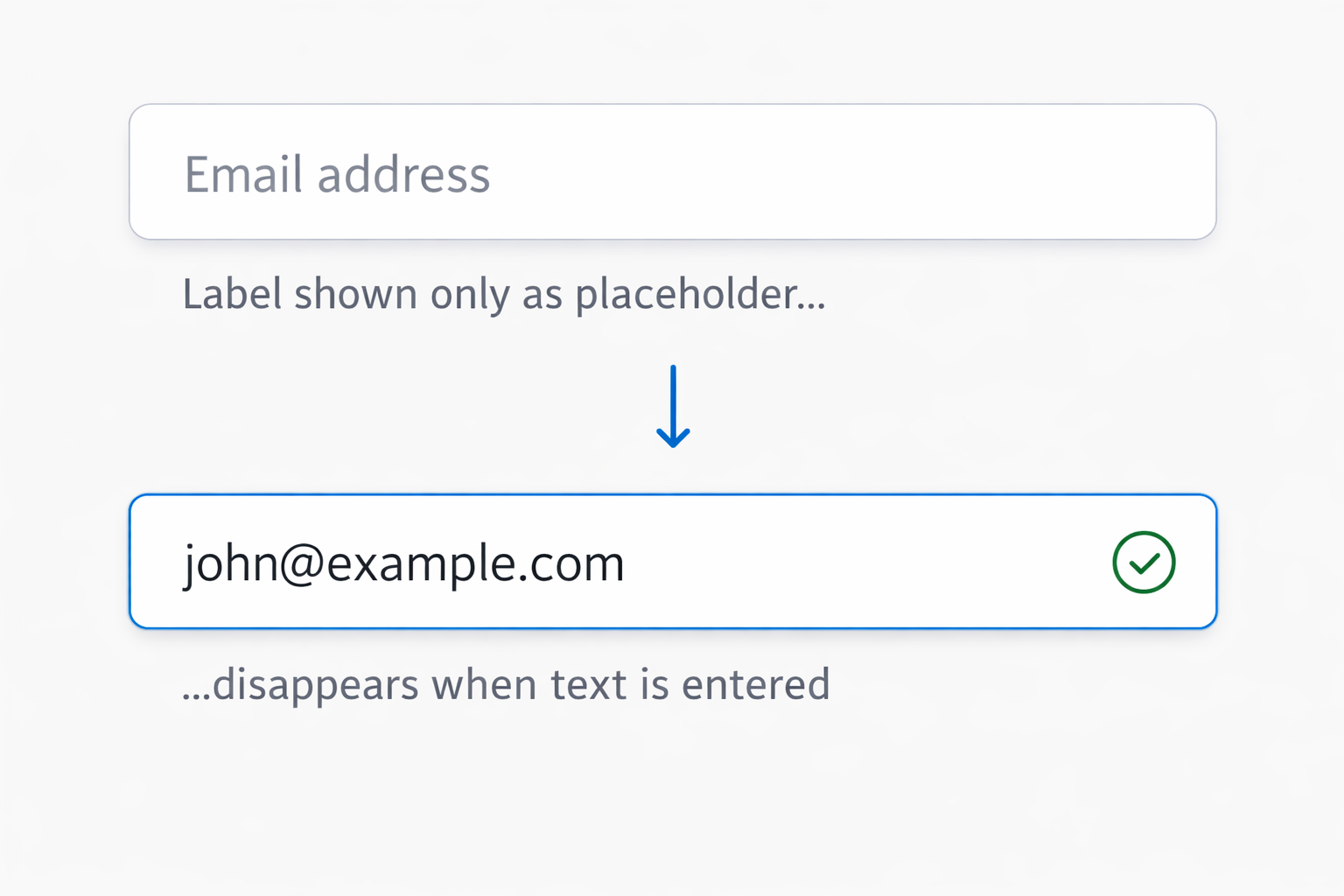
Avoid relying on placeholder text as the only label. Placeholders disappear once text is entered and are often ignored by automation tools. The Nielsen Norman Group and WCAG both recommend persistent labels for usability and accessibility.
Proper HTML semantics
Forms should use standard HTML elements and relationships:
- <label> associated with inputs
- correct input types (email, tel, number)
- standard <select> and <textarea> elements
Semantic markup helps both assistive technologies and automation systems identify field purposes reliably.
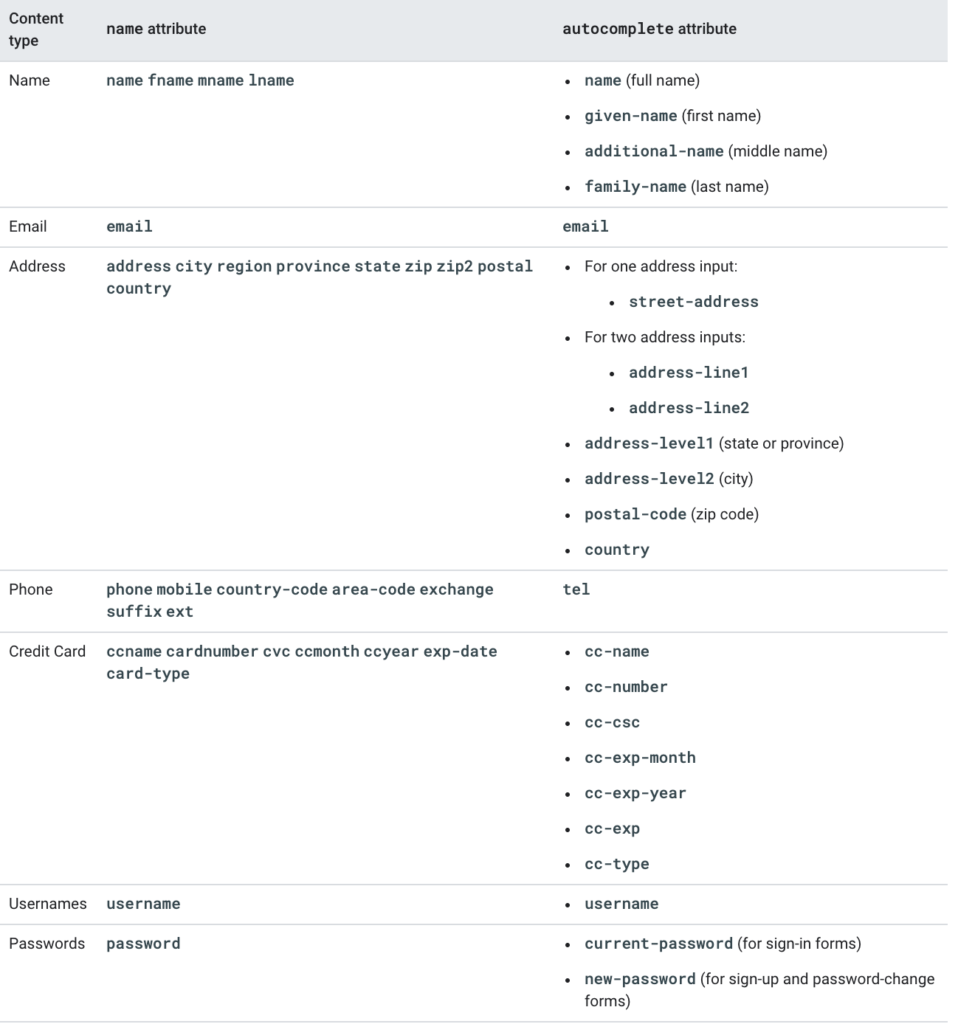
Autocomplete attributes
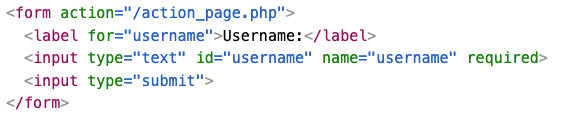
The HTML autocomplete attribute helps browsers and tools understand the expected content of a field.
Example:
<input type="email" autocomplete="email">
<input type="text" autocomplete="given-name">
Autocomplete attributes are part of the HTML specification and improve both browser autofill and machine interpretation (WHATWG HTML Standard). What’s more, Zuko data shows that there is a positive correlation between the use of autocomplete and the conversion rate of forms and checkouts.
Logical tab order
Fields should follow a logical tab order that reflects the intended completion flow. Agents often navigate forms sequentially using keyboard-like interactions. Broken tab order can cause them to skip or misinterpret fields. It's similar to the issues that blind users with screen readers face.
Clear required vs optional indicators
Agents must understand which fields must be completed so you need clear indicators such as required attributes, visible markers or explicit instructions.Ambiguity can cause agents to either abandon the form or submit incomplete information.
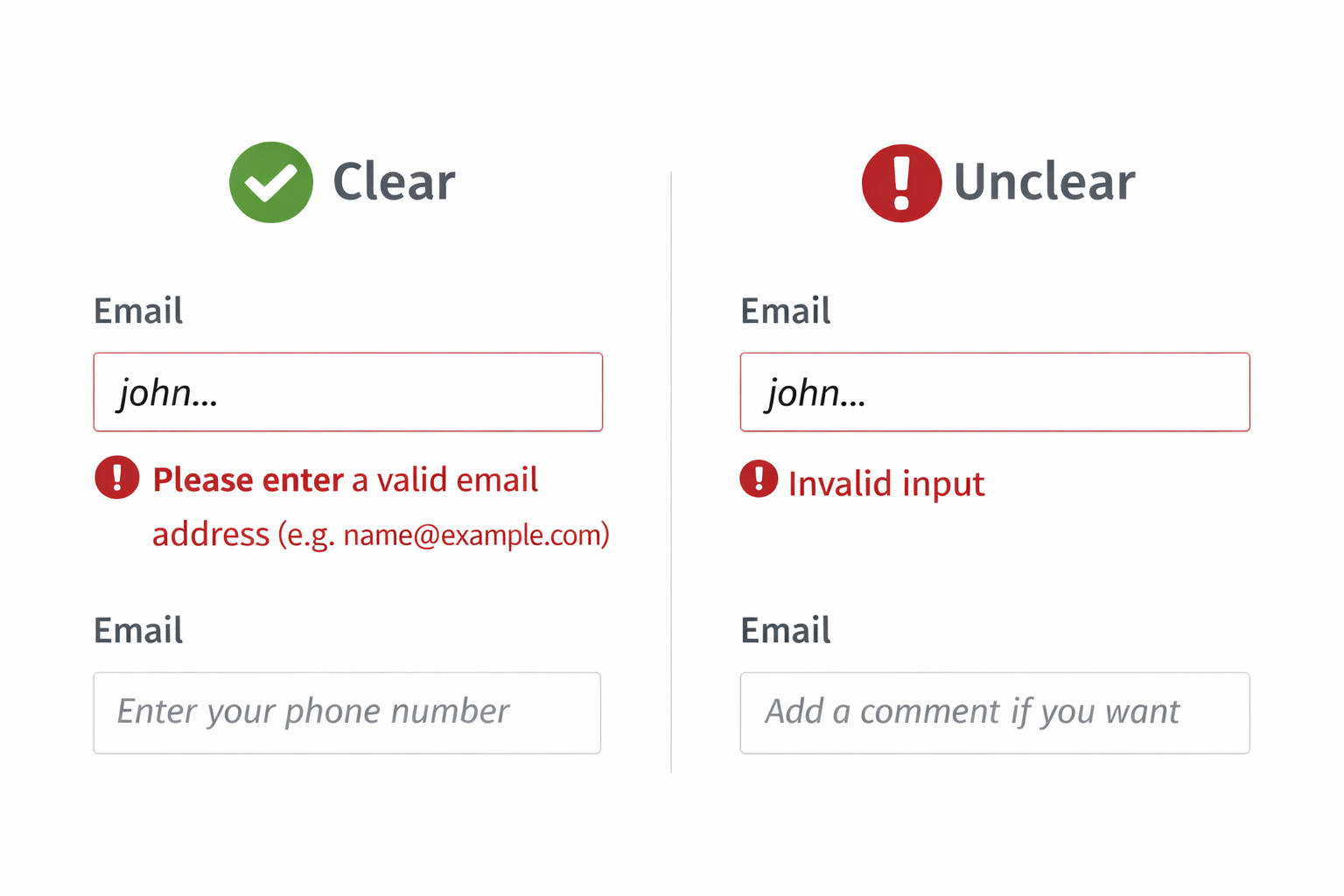
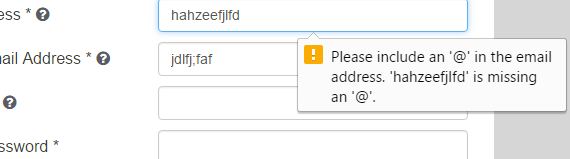
Descriptive error messages
As with human UX, your form error messages should clearly explain what went wrong and what correction is needed. We’ve got plenty of advice on how to write good error messages but as a simple example:
Don’t rely solely on browser validation
As a further extension of the error message point, relying entirely on native browser validation can create problems for AI agents. While validation rules such as required or type="email" are defined in the HTML, the error messages themselves are often generated by the browser as tooltips or pop-ups.
Because these messages are not always present in the page’s DOM, an AI agent scanning the HTML may not be able to read or interpret the error and determine how to correct it.
A better approach is to validate inputs in your own UI and display clear, descriptive error messages directly on the page. This ensures that both humans and automated agents can detect the error and understand what needs to be fixed. This approach is also recommended for accessibility, where errors should be clearly exposed in the interface and associated with the relevant fields.
Standard form controls
Standard form elements such as native dropdowns, checkboxes and radio buttons are easier to interact with than elements that a developer has tried to build themselves (often because they believe it “looks better” on the front end than standard executions)..
Heavily customised UI elements often break accessibility semantics, making them harder for automated systems to interpret. Some common patterns we see at Zuko are dropdowns built as <span> rather than <select> and <button> built as <div>. If you’ve built in this way you may be making life harder for AI agents (if AI agents can be said to have a “life” - who knows!).
In pretty much all cases, it’s better to stick to standard versions of form elements - better for both interpretation and behavioural tracking.
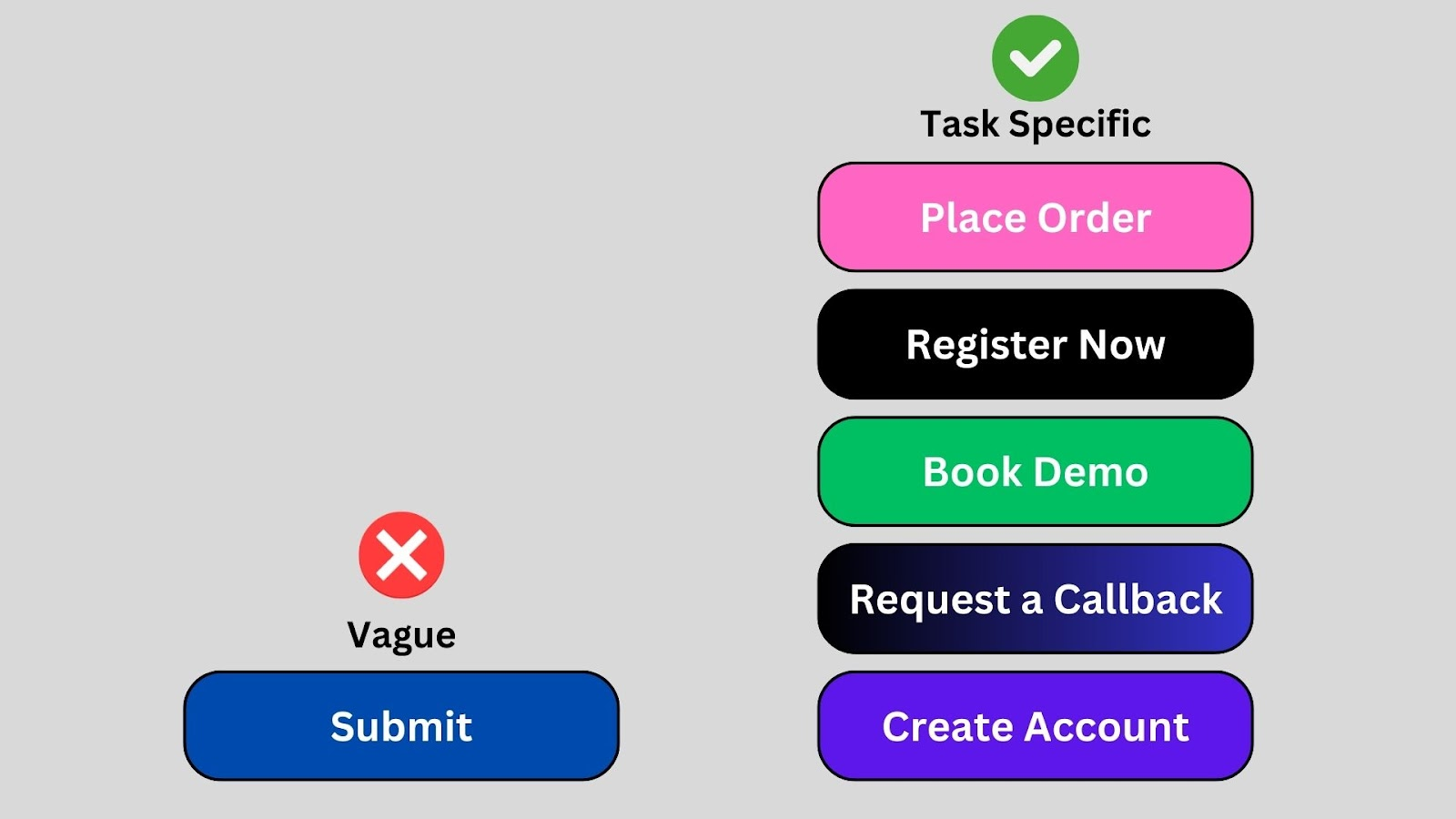
Visible submit button with a clear purpose
The form submission control should be clearly visible and labelled with something like “Submit application”, “Get my quote” or “Create account” (or whatever is relevant for you). Ambiguous buttons like “Continue” can make it harder for agents to understand what action is being taken.
Negative Signals: Common Barriers for AI Agents
While some design choices help agents, others actively prevent them from completing forms. Many of these mechanisms were originally introduced to block bots and automation which means they may also block legitimate agent interactions. If you are wanting to accept submissions from AI agents you might have to rethink your spam protection.
CAPTCHA and bot detection
CAPTCHA systems and other bot-detection mechanisms are one of the most obvious barriers for AI agents attempting to complete forms. Traditional CAPTCHA challenges such as image recognition puzzles, distorted text, or behavioural checkbox tests are designed specifically to block automated submissions. As a result, even if an AI agent successfully completes all the form fields, it may be unable to pass the final verification step.
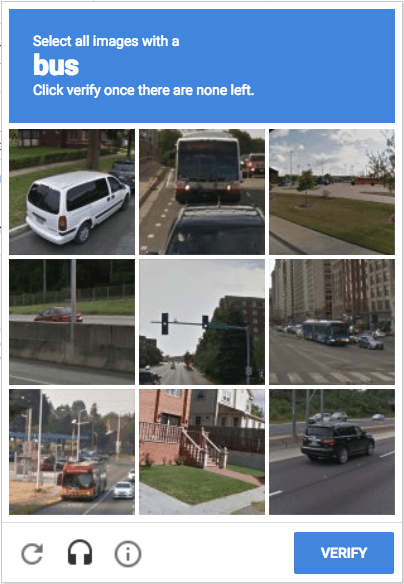
Beyond AI agents, CAPTCHAs are already known to create usability and accessibility issues. The W3C Web Accessibility Initiative has noted that many CAPTCHA implementations create barriers for users with disabilities, and they can also increase friction for legitimate users trying to complete a form.
Rather than relying solely on visible CAPTCHA challenges, many organisations are moving towards less intrusive alternatives. These include risk-based bot detection, rate limiting, or post-submission verification such as email confirmation. These approaches allow forms to remain accessible to legitimate users (and potentially AI agents acting on their behalf) while still providing protection against spam and automated abuse.
Placeholder text as the only label
Fields that rely solely on placeholder text are difficult for agents to interpret because the label disappears when input begins.
Custom dropdowns or controls without semantic markup
Many modern forms replace standard HTML controls with heavily customised components built using JavaScript and <div> elements. While this can allow for greater visual control, it often removes the semantic structure that browsers, assistive technologies and automation tools rely on to understand how a form works.
Standard form elements such as <select>, <input type="checkbox">, and <input type="radio"> carry built-in meaning in HTML. This semantic information tells systems what the control is, what values it expects, and how it should behave. When these elements are replaced with custom widgets built from generic containers like <div> or <span>, that meaning can be lost unless it is carefully recreated using accessible markup and ARIA attributes.
For humans, the visual design usually makes the purpose of the control obvious. But AI agents interacting with the page may rely primarily on the DOM structure and semantic signals. If those signals are missing or inconsistent, the agent may struggle to determine what type of control it is interacting with, what values are available and how to select or change those values.
For example, a native <select> element exposes its options directly in the HTML, making them easy to parse and interact with. A custom dropdown, however, might only reveal its options after JavaScript events fire or hidden elements are dynamically rendered.
Where possible, it is safer to use native form controls, which are well understood by browsers and automation tools. If custom components are necessary, they should be implemented with proper accessibility semantics such as ARIA roles and clear labels to ensure that both assistive technologies and AI agents can interpret them correctly.
Ambiguous field purposes
Fields labelled vaguely - think “Information” or “Details” - create uncertainty for both humans and machines.
Agents, like humans, need clear, descriptive field names to determine what information to provide.
Hidden fields requiring JavaScript interaction
Some forms rely on fields or controls that only become visible or usable after a JavaScript interaction. For example, additional questions may appear only after selecting a particular option, clicking a button, or triggering a dynamic event such as onchange. While this can create a cleaner experience for human users, it can make the form harder for automated systems to understand and complete.
AI agents often begin by analysing the page’s HTML structure to identify fields and determine what information is required. If key inputs are hidden by default, injected dynamically, or only revealed after a specific sequence of interactions, the agent may not discover them or may fail to trigger the correct behaviour. In some cases, the agent may attempt to submit the form without realising that additional required fields exist.
To reduce this risk, forms should ensure that conditional logic is implemented in a way that remains discoverable and predictable. Important fields should be clearly associated with their triggering inputs, and where possible the structure of the form should remain visible in the DOM even if parts of it are conditionally displayed. This helps ensure that both humans and AI Agents can understand the full scope of the form and complete it successfully.
Time-based validation or session expiry
Some forms impose time-related constraints that are easy for humans to overlook and difficult for AI agents to handle reliably. This can include sessions that expire after a short period, verification steps that time out, or validation rules that reject inputs if too much time passes between steps. While these mechanisms are often introduced for security or fraud prevention, they can interrupt legitimate completion attempts.
For an automated agent, the problem is that form completion may not happen at the same speed or in the same sequence as a human user. The agent may pause to interpret the page, decide what information is needed, or move between steps more deliberately. If the session expires or a token becomes invalid during that process, the submission can fail even if all the required information has been entered correctly.
Where possible, forms should avoid overly aggressive timeouts and make expiry states explicit. If a session does expire, the user or agent should be clearly told what happened and how to recover, rather than being forced into a silent failure or confusing validation loop. This makes the form more robust not only for AI agents, but also for human users who may be interrupted or need more time to complete it.
Honeypot fields
Honeypot fields are hidden inputs added to forms to trap bots that automatically fill every field they detect. Because human users cannot see these fields, they naturally leave them blank, while unsophisticated bots may populate them allowing the submission to be flagged as spam.
However, more advanced automation systems, including AI agents, may still encounter problems with honeypots if the fields are present in the HTML but visually hidden with CSS. An agent scanning the DOM might attempt to interpret or populate the field without realising it is intended as a trap.
If honeypots are used, they should be implemented carefully ideally in ways that clearly signal to assistive technologies and automation tools that the field should be ignored, or combined with other abuse-prevention techniques rather than relied upon as the sole defence.
Complex multi-step flows without progress indicators
Multi-step forms are common for longer processes such as applications, checkouts or registrations. Breaking a form into stages can improve usability for humans, but it can create problems for AI agents if the structure and progression of the form are not clearly signalled.
Many multi-step flows rely heavily on JavaScript transitions, dynamically loading new fields or replacing sections of the page without clearly indicating how many steps exist or what stage the user is currently in. An AI agent interacting with the page may not be able to determine whether it has reached the final step, whether additional information will be required later, or how to navigate backwards if something goes wrong.
Clear structural cues help reduce this ambiguity. Progress indicators, step numbers, and consistent navigation controls make it easier for both humans and automated systems to understand where they are in the process and what remains to be completed. Ensuring that each step has clear submission actions and predictable transitions can make multi-step forms far more robust for automated interaction.
Why This Matters
The rise of AI agents will fundamentally change how users interact with digital services. Instead of manually completing forms, users may increasingly rely on agents to compare financial products, submit applications, request quotes and make purchases. If an agent cannot complete your form, it may simply move on to a competitor whose form is easier to interact with.
Just as websites had to become mobile-friendly in the smartphone era, they will need to become agent-friendly in the AI era. That's where the new discipline of Agent Experience Optimization (AXO) comes in.
The good news, however, is that many agent-friendly practices are simply good form design principles. If you make your form readable for agents you’ll make UX better for your human users as well.
If you’re not sure whether your forms are ready for AI agents then give Zuko Agent Score a try to see how you fare. If you're looking to audit your site more generally there are a number of other AXO tools you might want to try.
Common Questions about AI Agents and Forms
Can AI agents complete forms?
AI agents can work through and complete webforms and checkouts as long as there are no blockers in the form build that prevent them from doing this?
What are the biggest issues that prevent AI agents completing forms?
Some of the biggest issues that block AI agents from completing forms and checkouts are poor labelling, lack of autocomplete in form fields, concealed validation / error messages, hidden fields and Captchas.
Are there tools that can audit forms to see if AI agents can complete them?
Yes. Zuko's AI Agent readiness tool can work through your form and point out any issues that are making it difficult for AI agents to complete your form or checkout.
About the Author
Alun Lucas
Managing Director, Zuko Analytics
Alun Lucas is Managing Director of Zuko Analytics, a specialist form analytics and session replay platform. He writes about form optimisation, conversion, digital analytics and emerging AI-agent behaviour.
LinkedIn ProfileWe wrote the book on form optimization!
"The best book on form design ever written - 80 pages of PURE GOLD"


More from our blog:



Want to get started with Zuko?
Start a free trial that includes all features, or request a demo